How to highlight the menu on WordPress
Learn how to highlight a menu on WordPress to draw more attention to the options and make a difference in the menu in this KeyUpSeo article.
You may have come across a menu that is different from others and attracts attention on some sites.
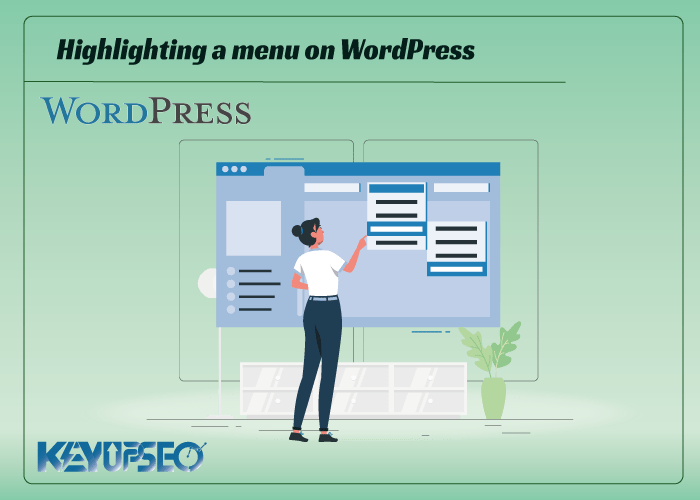
Highlighting a menu in WordPress makes one of the menus look important, and they show it differently to attract the audience's opinion. As a result, you will interact better with them, and they will stay on your site or come back to you again.
High retention time or user return rate is one of the most important SEO parameters, and you have improved it with a simple task such as highlighting the menu on WordPress.
In general, anything that attracts more users means business growth and improving your site's SEO.
If you are looking for a tutorial on how to highlight the menu on WordPress, follow this article until the end.
Highlighting a menu on WordPress
Highlighting a menu item can really help draw the user's attention to something important.
If you want to highlight the pricing or contact us page on your website, the ability to highlight a menu on WordPress will come in handy.
You should learn how to easily highlight a menu item on WordPress using CSS code.
But first of all, why should we make one of the menus more prominent than the others?
The importance of highlighting the menu on a WordPress site
The main menu of the site or the main lists are created from links that point to the important parts of your website. They are usually presented as a horizontal bar at the top of each page.
This main menu is created by adding different items you want.
A highlighted item can be a great way to draw the user's attention to your most prominent feature. When visitors visit your website, they are involuntarily drawn to such an item. In fact, such a case can be considered a kind of call to action.
By adding a menu highlighting feature on WordPress, you can create a user-friendly website and highlight important menu items that you want your users to check.
Highlight the menu using CSS
Now we want to teach you how to highlight a menu item in WordPress using CSS.
- Highlight a menu item using the site editor
- Highlight a menu item using the template customizer
We will explain each one below.
-
Highlighting a menu item using the site editor
With the help of a plugin called Insert Headers and Footers, you can create a highlight and custom menu at this stage. In the created menu called Code Snippets, click on the Add New option.

Now that you're on the Create Custom Snippet page, start by choosing a name and a Code Type for your CSS. You can choose any name you like.
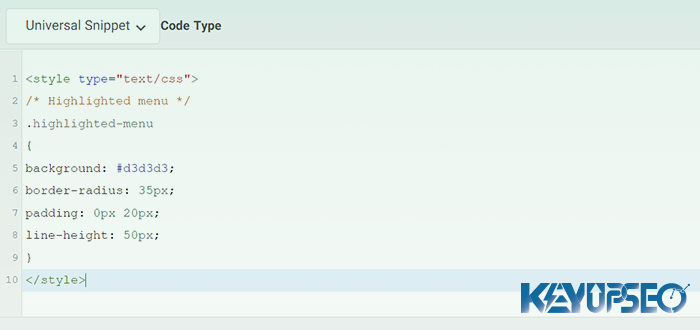
Next, simply click on the drop-down menu next to the "Code Type" option on the right and then select the "Universal Snippet" option. After that, copy or paste the following CSS code into the Code Preview.
<style type="text/css">
/* Highlighted menu */
.highlighted-menu
{
background: #d3d3d3;
border-radius: 35px;
padding: 0px 20px;
line-height: 50px;
}
</style>
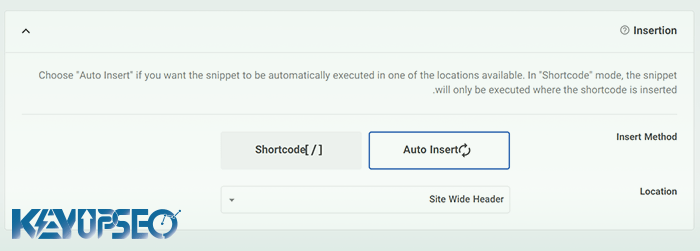
After entering the code, scroll to the "insertion" section. Here, simply select the "insertion method" mode to have the code automatically run throughout your website.
Now save the information on this page and see the result.
You can make changes in the display mode and color of this menu according to your desire and taste.
-
Highlight a menu item using the template customizer
In this method of highlighting a menu on WordPress, you can take action with the help of the template customization section. From the display section, click on the customization option. Then you will see an option called CSS.
Now you can enter CSS codes in this section. And get the same result as the previous method.
Show a special menu
Sometimes we want to make a menu look bolder than others and attract the attention of the audience. The way to do this is different according to the platform and programming language of the site.
In this article, we have taught you how to do this on WordPress.
You can highlight a menu on WordPress by placing it in the sections mentioned above with the help of CSS codes.